
 |
|
MigratingMDaemontoMicrosoft Exchange 2013orOffice 365 |
|
| Last Version:
Product Version: |
February 2015
1.3 |
Copyright
Information in this document, including URL and other Internet Web site references, is subject to change without notice. Unless otherwise noted, the example companies, organizations, products, domain names, e-mail addresses, logos, people, places, and events depicted herein are fictitious, and no association with any real company, organization, product, domain name, e-mail address, logo, person, place, or event is intended or should be inferred. Complying with all applicable copyright laws is the responsibility of the user. Without limiting the rights under copyright, no part of this document may be reproduced, stored in or introduced into a retrieval system, or transmitted in any form or by any means (electronic, mechanical, photocopying, recording, or otherwise), or for any purpose, without the express written permission of Sumatra Development LLC.
2015 Sumatra Development LLC. All rights reserved.
Microsoft, Active Directory, Outlook, Windows, and Windows Server are either registered trademarks or trademarks of Microsoft Corporation in the United States and/or other countries.
The names of actual companies and products mentioned herein may be the trademarks of their respective owners.
Table of Contents
Understanding MDaemon Migrations 3
Overview – Train Hard, Fight Easy! 3
Sumatra’s MDaemon Migration Sequence 4
Under the Hood – Detailed Information and References 6
International Considerations 8
Migrating MDaemon Public Distribution Lists to Exchange 10
MDaemon Email Migration into Exchange Office 365 19
Contact Sumatra Development 20
Understanding MDaemon Migrations
This guide explains how to take legacy scheduling data from MDaemon and insert it into Exchange 2013 or Office 365. We have included the process for migrating email via imapsync as well as provisioning and de-provisioning users.
The process of moving calendar data is usually an order of magnitude more complicated than moving email:
- Email is a static object requiring format changes and proper management to move, it is connected fundamentally to a single user.
- Calendars and schedules are cross-connected to multiple users. Its value results from exactly those cross-connections. They are true webs of information rather than static threads. For MDaemon migrations, historically static migrations with additional information on the guest lists have proven in the field to be very acceptable to both the user community and administrators.
- Migrations like this cannot be successfully accomplished overnight on a day’s notice with no planning or testing. You have been warned.
.
Overview – Train Hard, Fight Easy!
Regardless of the method, number of users, servers, or additional engineering requirements you have, we recommend three things.
- ALWAYS run your conversion on a test system BEFORE moving it into your production environment.
- ALWAYS run your conversion on a test system BEFORE moving it into your production environment.
- ALWAYS run your conversion on a test system BEFORE moving it into your production environment.
We cannot state enough the importance of testing prior to deployment. The most successful migrations we have seen have been the ones with the most preliminary testing. Our motto comes from Marshall Zhukov via the Navy SEALS: Train hard, fight easy.
We take migration results very seriously. The earlier you start, the better and easier the process is.
Sumatra’s MDaemon Migration Sequence
Requirements
Make sure that your environment meets the following software requirements.
MS Exchange 2013 or above
.NET Framework 4.5
The Microsoft Exchange Web Services Managed API V2.2
To insert data into Exchange or Office 365 you will need a service account with Impersonate role.
Imapsync via http://imapsync.lamiral.info/ (You will be glad you used this.)
Sumatra Tools and Scripts:
- mCalReader.exe (there is a release version on the code as we send it – feel free to rename a copy for brevity – but keep the original safe in case Sumatra needs to help you with something)
- RunSelectedUserMigration.ps1
- DistGroupCmdlet.ps1 with mCalReader_ParseGroupFiles.exe
- Deployprf.vbs
Migration Sequence
- Run RunSelectedUserMigration.ps1 (you will need to edit it first for your environment – see the file itself for instructions) This script will:
- Read your MDaemon directory and create a CSV file with a set of users and passwords
- Provision users on Exchange 2013 or Office 365.
- NB: Provisioning as contacts is necessary only if you are doing a staged/segmented migration (vs. a “big bang” migration). In that case provision users who are not yet migrated as Exchange Contacts and then change them to full users before their data is migrated.
- Migrate email via imapsync and mCalReader
- Perform your quality assurance spot tests to make sure this went well.
- Run DistGroupCmdlet.ps1 (you will need to edit it first for your environment – see the file itself for instructions) This script will:
- Migrate MDaemon Public Distribution Lists if desired (see later in manual)
- Run deployprf.vbs to switch Outlook to look at your new Exchange domain rather than your legacy MDaemon domain
Under the Hood – Detailed Information and References
mCalReader
mCalReader is your best friend for moving calendars from MDaemon into Exchange.
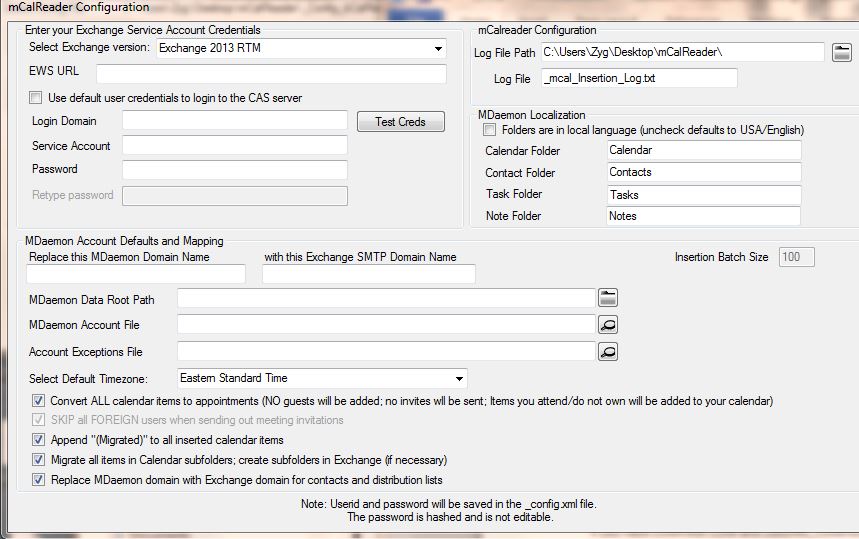
We keep the documentation for this online on our blog where we recommend you look for any news involving MDaemon to Exchange migrations.
This post goes over scripting the calendar migration.
Most of these are self-explanatory. But in general the options you check will depend on how you want to migrate.
Checking “Convert ALL calendar items to appointments” will migrate your calendar items to Exchange as though you were printing a schedule into Outlook. All your data will be there but meetings will not be “live.” If you UNCHECK this, it will re-propose current meetings, meaning that you will have invitations for your current meetings you have been invited to in your INBOX. This has the advantage of getting you closer to live meetings, but it means that it is best suited to a “Big Bang” migration for MDaemon as opposed to a phased migration for MDaemon.
“FOREIGN” users are users outside of your email domain. So if you are reproposing meetings you have the option of re-sending the invitations so that external users are once again in the guest list.
We’ve prepared this brief table to explain how we see most sites set up these options based on how they migrate.
| Historical Migration |
Staggered Migration – over a month or more OR are changing the domain name/smtp addresses |
Staggered Migration over a few days or a few weeks |
Big Bang | |
| Convert all calendar entries to appointments | Checked | Checked | Unchecked | Unchecked |
| Skip Foreign users | n/a | n/a | Checked | Checked |
Test Creds
The Test Creds button is your check that you have the proper credentials to insert data into your target Exchange system. If you have your permissions configured, press “Test Creds” and insert a user (other than your Service Account). If your permissions are configured correctly it will insert an appointment in that account’s calendar at the next hour boundary and inform you this has succeeded. If your permissions are not configured correctly it will inform you of failure and you need to evaluate what is wrong in your environment.
Accounts and Exceptions
The MDaemon account file and the Exceptions file are two things you really need to understand.
The MDaemon account file is the list of MDaemon accounts you want to take data from. If you want to limit the users you migrate (say for testing purposes) do so here.
The exceptions file is the listing of account mappings that are not simple transpositions of domain names (i.e., Jhendrix@mdaemon.company.com maps to jimi.hendrix@exchange.company.com in the Exceptions file).
| Jjoplin,Janis.jopln
Liberace, walter.liberace |
Or
| Jjoplin@mdaemon.yourdomain.com,Janis.jopln@yourdomain.onmicrosoft.com
liberace@mdaemon.yourdomain.com,walter.liberace@yourdomain.onmicrosoft.com |
If you include the domain name(s), mCalReader will remove them and replace them with the domain names defined in its configuration section.
IF they are not changing (i.e., jjoplin@mdaemon.yourdomain.com is going to be jjoplin@yourdomain.onmicrosoft.com) you do not need them in the Exceptions file.
When the mCalReader application runs it is checking that accounts you want to take from MDaemon actually exist in Exchange. You will come to appreciate this foresight (especially if you want to re-propose meetings).
Multiple Domains
If you have COMPANY.COM and LEASING_COMPANY.COM as MDaemon email domain names, you should migrate these in the tool one domain at a time in separate runs of mCalReader. NB: this will interpret users outside each domain as “foreign” users – so if you want to preserve that information be sure to check the appropriate box.
International Considerations
If you are in Europe:
- Localized language files for mCalReader are in the ZIP file we sent you. Keep them in subfolders to use the localized versions.
- The Configuration screen gives the capability to change the name of the Calendar, Task, Contact, and Note folder for local versions. Please note: the ROOT folder for each item must be this name for migration (otherwise we will not find it!). Subfolders if you choose to take them over may be any name you wish.
- If you have character set / codepage issues, open the _Config.XML file and modify “Localization_Encoding” it is defaulted to UTF-8
Notes are migrated as Tasks
The Exchange Web services API does not allow us to create Notes. Therefore, to migrate MDaemon Notes we migrate them into the Tasks folder where it is a simple matter for users with Outlook to move them to Notes if they so desire. OWA has no capability to re-assign Tasks to Notes.
UNDO
One of the great benefits of our technology is the selective UNDO capability.
If something goes wrong with your migration (like inserting data into the wrong user, not that that has ever happened in the real world or anything….) you can remove the data Sumatra’s application inserted, leaving all other data in place. We urge you to test this feature.
Migrating MDaemon Public Distribution Lists to Exchange
Migrating MDaemon Public Distribution Lists to Exchange
- Create a new directory to hold the processed group files
- Launch the mCalReader_ParseGroupFiles code. Browse to the MDaemon server directory for the group files, the output directory (you created in step 1). Ensure the file extension pattern matches your group files (Note: it defaults to XXXXXXXXXXXXXXXXX)
- Press “Go” (the processing should happen quickly) Then exit the program
- Move the files and the shell cmdlet “DistGroupCmdlet.ps1” to the Exchange server (or any shared/accessible directory)
- Edit DistGroupCmdlet.ps1:
- Modify $MyDistFileList to point to the Distributionlists.csv file.
- Note: the shell will create distribution lists for all entries in this file. Remove entries that you do not want migrated/created.
- Modify $myMigratedOU to point to the OU that will contain the distribution lists. Note this is a PATH to the OU, and not a typical OU identifier (e.g., ou=xxx,dc=my,dc=com), Sample OU:, $myMigratedOU = “orca.sumatra.local/Clients/Lists”
- Modify $MyDistFileList to point to the Distributionlists.csv file.
- Launch Exchange powershell, change directory to the location of the script and distribution list files, then run the script: .\ DistGroupCmdlet.ps1:
Notes:
- If you want to test a few distribution lists:
- Run the EXE to parse all of the GRP files. The EXE produces a file, Distributionlists.csv.
- Edit that file, and leave the first line (header) and only those groups you want to test. Then,
- Copy the Distributionlists.csv, the supporting group CSV export files, and the powershell to exchange
- Accounts:
- Since there is a possibility that users might not exist in Exchange, the script creates the distribution list first, then adds users to the list one user at a time.
- If the user does not exist in Exchange, the cmdlet throws an error but continues.
- Also, the tool does not change any of the SMPT address domains, e.g., email addresses such as “@mail.COMPANY.com” will be migrated as “@mail.COMPANY.com”, and not “@COMPANY.com.”
Determining Your EWS URL
In Office 365 your EWS URL is
https://outlook.office365.com/EWS/Exchange.asmx
You MAY be able to go to the Exchange Control Panel (ECP) and use these more specific URLs for speed, but Microsoft is rapidly removing this capability:
- Click on “Options” (upper right of the screen). This switches to ECP and the domain in the URL changes (in our case it’s chNprdNNNN.outlook.com) – or –
- Sign in to Office 365. Click on Outlook. Look at the domain in the URL, in our case it is snNprdNNNNoutlook.com where N = a number.
For on-premises Exchange, the EWS URL formula is something like: HTTPS://CAS_server/EWS/Exchange.asmx
In ON-PREMISES you will usually have your IIS set for Windows Authentication (see http://technet.microsoft.com/en-us/library/gg247612.aspx for more details). This is also the default in hosted Exchange. Should you need to change this you may do so in the oCalReader’s configuration file (_Config_XML) file by changing the HTTPAuthType parameter (options are Basic, Negotiate, ntlm, and Kerberos)
NB: You hear us talking about Exchange being a moving target in a migration. That’s true here. The default is Negotiate in Exchange 2013, and Basic in Exchange 2007 and 2010. And any rollup, service pack, or bug fix could change the way Exchange permissions are managed or default. Use the “Test Creds” button in setup to ensure your permissions are set correctly.
Setting O365 Permissions (Quick Guide)
GLOBAL ADMINISTRATOR rights give you administration rights over Exchange / Active Directory, but they do not give you the rights to access mailboxes – which is what you will need to move in data and re-create state.
We’re going to take setting permissions in stages. We’ll do this assuming your domain is hosted in Office 365. The process is similar for Exchange 2013 On-premises.
- Your ADMINISTRATOR account needs to be able to:
- Use REMOTE POWERSHELL to Log into Office 365
- Create a separate service account (this keeps your ADMIN function separate from your MIGRATION function)
- We call the Service Account EXSU. When you create it, make sure it is mailbox-enabled (you will be sending email on behalf of this account)
- In Office365 you want to make sure that your administrative account is assigned to the built-in Role Group “Organization Management.” On Role Groups see: http://technet.microsoft.com/en-us/library/dd638105.aspx#Builtin
- Grant EXSU three rights:
- Impersonation
- No throttling. This is relevant (i.e., in your control) only for on-premises Exchange. For Office 365 you will need to contact your Microsoft rep and explain what you are doing and ask throttling turned off for the duration of your migration.
- If you grant the service account FULL ACCESS to mailboxes, it will be easier for you to use OWA to check the results for individual users in testing and migration.
- To do this – use the various Exchange PowerShell cmdlets which execute the appropriate actions.
- Start POWERSHELL.
- REMOTE to your OFFICE365 account
- IMPERSONATION: You’re creating a ROLE called “_suImp8” that allows Impersonation and then assigning it to EXSU
| new-ManagementRoleAssignment -Name:_suImp8 -Role:ApplicationImpersonation
-User:exsu |
-
- THROTTLING: You’re creating a policy called SuThrottling Policy and then assigning it to EXSU. (Otherwise Office 365 might shut you off mid-migration)
| New -ThrottlingPolicy SuThrottlingPolicy
-EWSMaxConcurrency $null -EWSMaxSubscriptions $null Set-ThrottlingPolicyAssociation -Identity exsu -ThrottlingPolicy SuThrottlingPolicy |
-
- FULL ACCESS: this grants access to ALL MAILBOXES in your domain to EXSU.
| Get-Mailbox -resultsize unlimited | add-mailboxpermission
-user exsu -accessrights: fullaccess -InheritanceType: All |
3. TEST
Can you put the EWS URL in a BROWSER and when prompted for credentials get this?
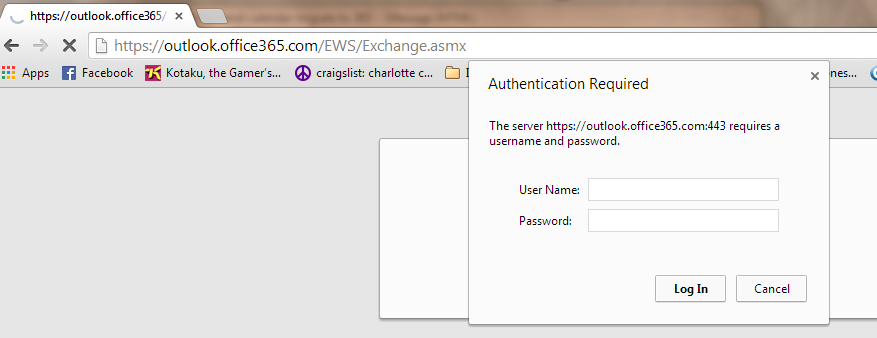
LOG IN with your EXSU credentials, and see the Exchange Web Service page:
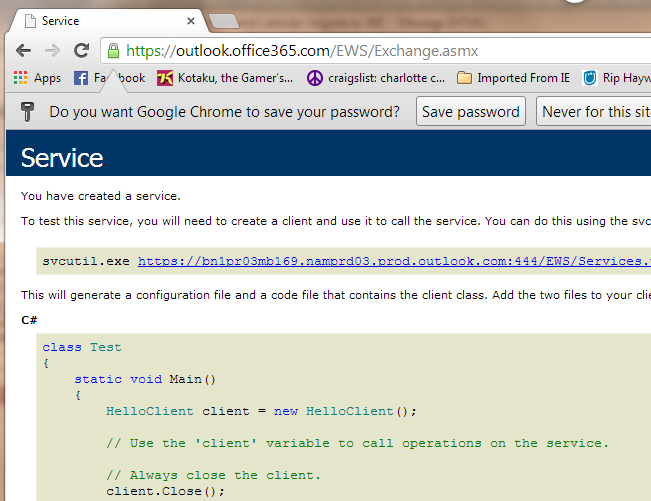
This example shows access to Office 365. Obviously if you are going into your on-premises or your own hosted domain, your URL and service name will be different.
Now to test FULLACCESS go to the URL box and modify it as I have with a user on your domain:
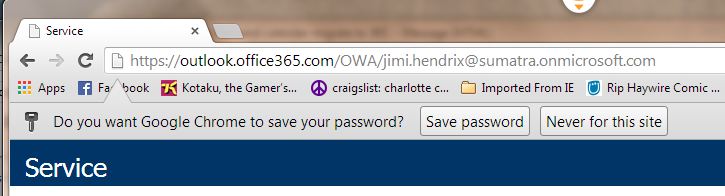
Hit ENTER
Now you will be prompted for your end user mailbox credentials. Use the service account (EXSU) and the password to access to the mailbox. This is where FullAccess comes in – you don’t have to crack all of your end users’ passwords!
NOW it should display your test users’ mailboxes in OWA
If all of these are successful, now you can do a test insertion.
Exchange Categories: Do NOT Clear Them
The Sumatra insertion process uses hidden categories to re-create the state of your calendar items and to cleanly remove our inserted data for testing and in the event of disaster.
During a migration make sure your Exchange server is NOT clearing categories from email. Post migration you can change it if you wish.
This cmdlet takes care of the issue.
| Set-TransportConfig -ClearCategories: $false |
Note on Permissions: Impersonate vs. Delegate
When do you use which permissions?
- Impersonate is typically used for ENABLED user accounts. Note, Impersonate fails when it tries to access a disabled account
- Delegate is used when dealing with DISABLED accounts, such as ROOMS disabled end user mailbox accounts, or in environments with a Resource Forest Trust. Note: the actual mailbox permission is “FullAccess” (Full access is set via add-mailboxpermission command shell)
- We refer to Room and Equipment accounts as “Resource” accounts (because it is more general). Room / resource accounts are provisioned as DISABLED accounts (by default).
An excellent Microsoft summary of the differences in permission is here:
Exchange Impersonation vs. Delegate Access: http://blogs.msdn.com/exchangedev/archive/2009/06/15/exchange-impersonation-vs-delegate-access.aspx
Exchange Web Services Throttling
It seems that every SP and Roll-up of Exchange makes throttling more and more.
Now EWS is included in Exchange throttling. You can read about it at More throttling changes for Exchange Online.
Often after you apply a patch or roll-up you will find your throttling defaults re-set or that the behavior has changed (yet another reason we are maniacs about constant testing). You might need to delete and recreate your applicable policies for this process.
Into an on-premises installation turn this off during migration.
Our recommendations going forward for Hosted Migrations:
During validation, if you can, point to different CAS servers to reduce CAS-server throttling.
During an insertion, use MULTIPLE service accounts which means using parallel insertion processes and point these to different CAS servers. We’re set up for this already, but we now recommend it in smaller migrations than we used to.
During migration, set the batch input to at least 50 calendar objects.
There are four kinds of accounts in Exchange:
- Users
- Resources
- Contacts
- Shared[1]
Your migration will definitely make use of the first two (and on occasion the third)
Within Resources there are two types:
- Rooms
- Equipment
Within rooms, there are two basic types
- AutoAccept (think of this as “First-Come-First-Served”)
- Managed (think of this as “Janet approves booking this room”)
User accounts are fairly obvious and straight-forward. Every user you migrate needs to have an account, and this account needs to be enabled on Exchange.
Contacts (or mail-enabled contacts) are important if you are planning on migrating in stages, or domain by domain. We’ll deal with this case later since it is not common, but it is useful in very large migrations.
There is NO capability in bCalReader to change account types during a migration. If you have a Resource account in Beehive, it will migrate into a Resource in Exchange, not a User.
Shared accounts: Migrate shared accounts as user mailboxes. Change them to shared post-migration using this cmdlet for the shared calendar IT_Vacation:
| Set-Mailbox -Identity IT_Vacation -Type Shared |
For an MDaemon migration this section is mostly provided for your information.
Resources in a migration require special handling. To re-create state from a previous calendar system we need to be able to take direct control during the migration – but post-migration you obviously want to start using the capability Exchange is built for.
Resource Accounts in Exchange 2010/2013 are DISABLED upon account creation.
For the migration process the Sumatra process for Exchange requires that Resource accounts be temporarily ENABLED with AutomateProcessing set to NONE and that resource accounts have a password (or you cannot ENABLE the accounts which is necessary for Sumatra insertion). This is because without the Resource accounts ENABLED we cannot re-create the state that existed in Meeting Maker / OCS and we must do this based on source system data, not on the AutoAccept rules Exchange employs.
Automatic Booking:
To use the Exchange Management Shell to Disable automatic booking on a resource mailbox:
| # In Exchange 2007
Set-MailboxCalendarSettings <Identity> -AutomateProcessing: None |
| # In Exchange 2010, Exhange 2013, Office 365
Set-CalendarProcessing <Identity> –AutomateProcessing: None |
To Enable (post migration):
| # Exchange 2007
Set-MailboxCalendarSettings <Identity> -AutomateProcessing: AutoAccept # Office365 et al Set-CalendarProcessing <Identity> –AutomateProcessing: AutoAccept |
The Microsoft documentation can be helpful :
http://technet.microsoft.com/en-us/library/dd335046(v=exchg.150).aspx
An excellent summary of creating resource mailboxes can be found here:
http://help.outlook.com/en-us/140/dd569933.aspx
Your actions:
Put all resources in one (or more) Organization Units (OUs) for ease of administration
Just prior to the migration:
- ENABLE all of the resource accounts via Active Directory Users and Computers
- Hide the accounts from the GAL
- Configure resources not to AutomateProcessing: AutoAccept meetings
After the migration: disable the accounts, add them to the GAL and configure to:
- AutomateProcessing: AutoAccept (this will result in a “first-come-first-served” room) or
- Use group-policy settings for managed rooms
In Exchange Management Shell the commands for setting will look like this
| Get-Mailbox -resultsize unlimited -filter {isResource
-eq $true} | Set-MailboxCalendarSettings[2] -AutomateProcessing: None -deletesubject:$False -AllowConflicts: $true -EnforceSchedulingHorizon: $False |
Note that after executing this re-start the Exchange Information Store Service (otherwise there is a default of 2 hours on the refresh for these properties).
We have found this table of settings to work well:
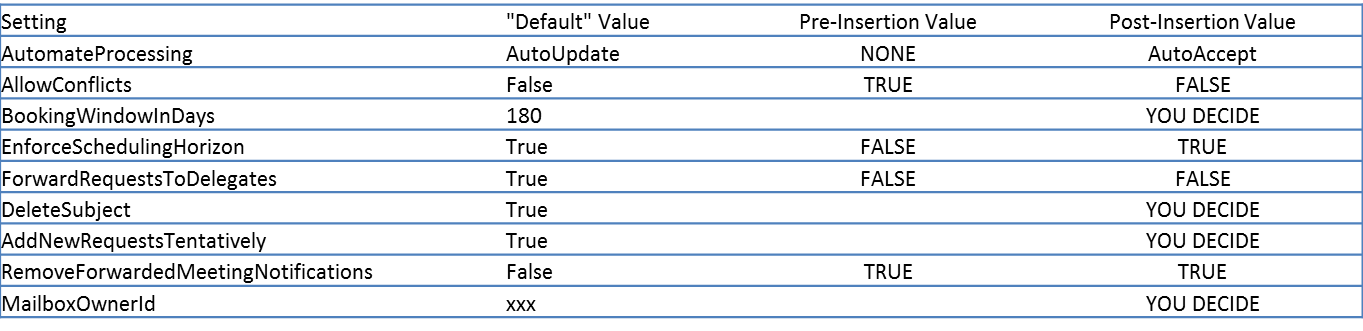
If you decide to set the booking windows in days (to, say, 180 days), remember that “ongoing” meetings will extend beyond the 180 days. Caveat: Many migrated meetings are ongoing or have an end date outside of your booking window. Once your end users change those meetings, the booked resource will decline those previously booked meetings because they fall outside of the booking window.
MDaemon Email Migration into Exchange Office 365
Use imapsync
We have found imapsync to be an excellent product for email migrations. It is inexpensive, efficient, and effective.
Please see our blog postings MDaemon Mail to Exchange via imapsync and imapsync vs PST: Tonnage and Speed as well as any other recent email migration postings on our blog.
Contact Sumatra Development
We never learned anything listening to ourselves talk.
We only learn it when you folks tell us what you want.
If it involves calendaring technology, feel free to contact us!
The Managing Partners of Sumatra can be reached at:
Check us out at www.sumatra.com as well as
Our blog:
http://calendarservermigration.blogspot.com/
And Twitter:
http://twitter.com/sumatra_dev
- See our blog posting at http://calendarservermigration.blogspot.com/2008/08/shared-calendars-in-exchange-2007-sp1.html for more information on what you can or should do with making legacy group calendars into Shared calendars post-migration. ↑
- In Office 365 this is now Set-CalendarProcessing –AutomateProcessing ↑